Successful presentations involve a lot of planning and careful thought, and presenting in groups offers some additional challenges. These suggestions on planning and execution can help enhance your next group presentation. And be sure to schedule time for the whole group to practice at least 2 full run-throughs!
GROUP PRESENTATION PLANNING
CLEARLY DELEGATE TASKS. Every presentation should be carefully planned, but planning takes on added importance when you’re working in a group. One way to allocate tasks fairly is to create a shared planning document.Using a platform like Google Docs allows all members of the group access to the same document.
On this document, list all tasks that must be undertaken to complete the creation of the presentation. Be specific, and include everything from research and the creation of tables and figures to slide creation and editing. Specify the different parts of the presentation, and allocate the tasks as fairly as you can, based on equality of workload and taking into account different skills and interests. Indicate the name of the person who will complete each task, and create a column with checkboxes to indicate when a task is done. If a task has to be completed by a certain date, indicate that date on the same document (a table is a good format in which to create this list).
Keeping a shared planning document helps everyone know the progress of all parts of the presentation. Additionally, if anyone becomes sick, or if the initial allocation of tasks demanded more work of some group members, this document will allow the group to re-allocate tasks when/if needed.
Remember, too, that all group members should speak for roughly the same amount of time (unless the instructor specifies otherwise), so you’ll need to divide up the speaking roles for the group members fairly.
VISUAL UNITY. Before anyone creates any slides for the presentation (if the presentation will have visuals), decide as a group on what the slides should look like. Aim for consistency across all of the slides. Together, decide:
- Is there a shared template that everyone should use, and if so, does everyone have access to it?
- What color palette will the group use? If figures need to be created, make sure the people creating them know what colors should be used.
- About how much text should appear on any one slide? Remember not to crowd the slides with too much text.
- If animations are used, which type(s)?
- What font will the group use?
- Will the group use a particular kind of illustration style (icons, background, photographs, other)?
PRESENTING IN A GROUP
HANDOFFS. How will you transition from one speaker to the next? You might simply memorize the last line that the speaker before you says. Alternatively, you might mention the next presenter by name as a way to cue them (e.g. “Next, Emma will provide an overview of this theory’s development throughout the 19th century”). Make sure all group members know the plan.
PRACTICE TOGETHER. Practice together as a group, completing at least 2 full run-throughs of the presentation (more, if you have the time). This will let you see how the different slides work together, and you will practice how transitions work between speakers. Practicing will also allow you to decide how to advance the slides — will each person advance their own slides?
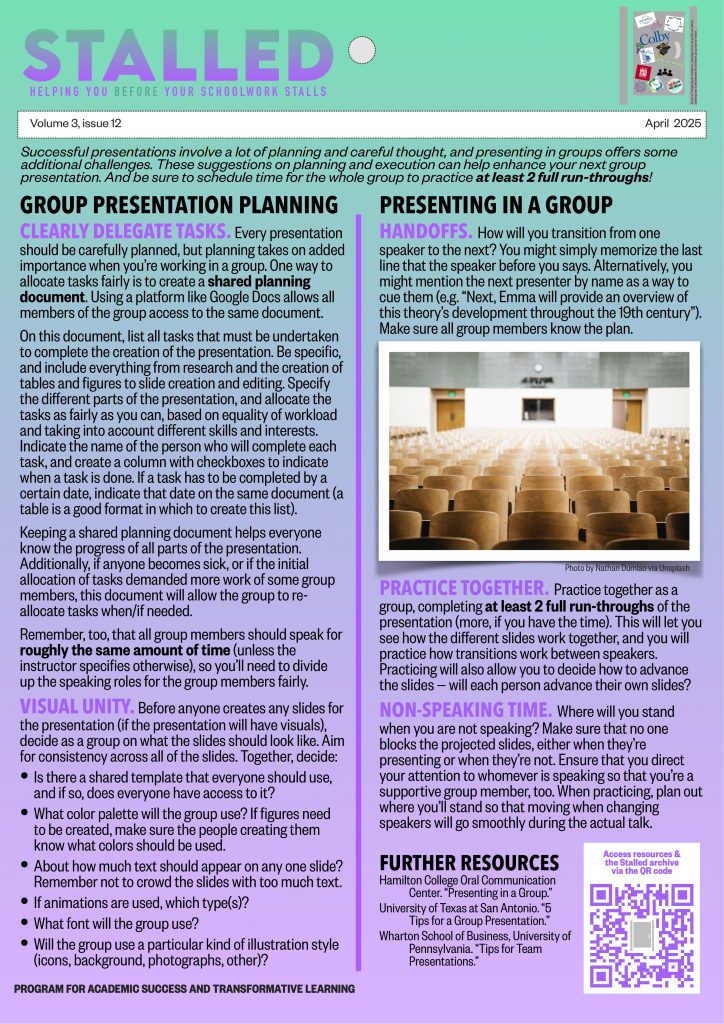
NON-SPEAKING TIME. Where will you stand when you are not speaking? Make sure that no one blocks the projected slides, either when they’re presenting or when they’re not. Ensure that you direct your attention to whomever is speaking so that you’re a supportive group member, too. When practicing, plan out where you’ll stand so that moving when changing speakers will go smoothly during the actual talk.
FURTHER RESOURCES
Hamilton College Oral Communication Center. “Presenting in a Group.”
University of Texas at San Antonio. “5 Tips for a Group Presentation.”
Wharton School of Business, University of Pennsylvania. “Tips for Team Presentations.”